8 Best 2 In 1 Chromebook
From leading brands and best sellers available on the web.By clicking on a link to a third party's website, log data is shared with that third party.
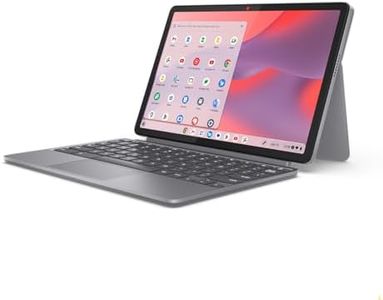
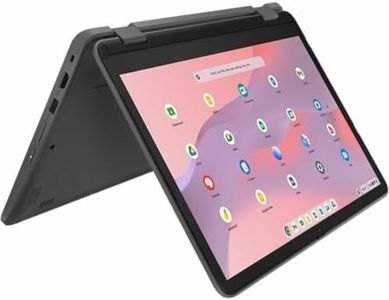
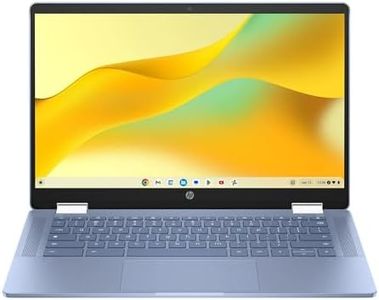
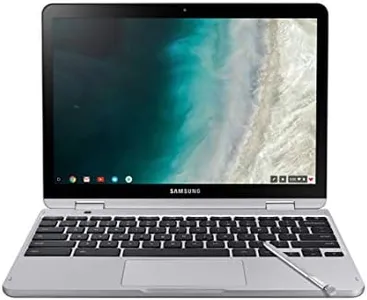
Buying Guide for the Best 2 In 1 Chromebook
Shopping for a 2-in-1 Chromebook can be an exciting experience since these devices combine the portability of a tablet with the productivity features of a laptop. The best approach is to first understand how you plan to use your Chromebook—whether that's for work, study, streaming media, or staying connected on the go. Think about the situations where you'd want tablet mode versus laptop mode, and pay attention to specs that impact performance, display quality, battery life, and how you interact with your device.Screen SizeScreen size refers to how large the display is, measured diagonally from corner to corner. This is crucial because it influences both portability and comfort of use. Smaller screens, around 10 to 12 inches, make the Chromebook more compact and easier to carry, ideal for people on the go or younger users. Medium sizes, from about 12.5 to 14 inches, offer a good balance between portability and screen space, making them great for everyday tasks and casual use. Larger screens, 15 inches and up, may be heavier but provide more workspace for multitasking or watching videos. Choose a screen size based on whether you value light weight and compactness or prefer a larger display for comfort and productivity.
ProcessorThe processor (CPU) is the brain of your Chromebook and affects how quickly apps load and how smoothly the device runs, especially when multitasking. Entry-level processors are sufficient for browsing, email, and light streaming. If you plan to use Android apps, run multiple tabs at once, or do more than just basic tasks, a mid-range processor will offer better performance. High-end processors are best if you anticipate using demanding apps or working with large files. Your daily activities and expectations for speed should guide your selection.
RAMRAM, or memory, determines how many tasks or apps your Chromebook can handle at the same time without slowing down. Devices with 4GB of RAM are fine for basic browsing, document work, and streaming. If you often keep many tabs open at the same time or use more advanced Android apps, 8GB is a more future-proof choice. Only look for more if you know you’ll push the Chromebook with many processes at once. Your multitasking habits are the main factor here.
StorageStorage tells you how much space you have to save files, download apps, and store media. Chromebooks often rely on cloud storage, so 32GB or 64GB is common and enough for everyday cloud-focused users. If you plan to keep lots of files, photos, or download many Android apps, 128GB or higher could be better. Consider how much you rely on Google Drive or other cloud solutions versus needing files locally to decide what's right for you.
Display QualityDisplay quality involves resolution, brightness, and whether the screen is IPS or has other quality enhancements. Higher resolution, like Full HD (1080p), means sharper images and text, making it more pleasant for reading, watching videos, or designing. A brighter screen helps in outdoor or brightly-lit rooms. IPS or similar screens offer better viewing angles and color. If you just do basic tasks, standard settings are fine; for media, drawing, or long hours of use, invest in better quality.
Battery LifeBattery life is how long the Chromebook can run on a charge. Lighter users and those near power outlets can make do with 7-9 hours. Those who are mobile a lot or want all-day performance should look for 10 hours or more. Your mobility and whether you want to avoid carrying a charger should help guide this decision.
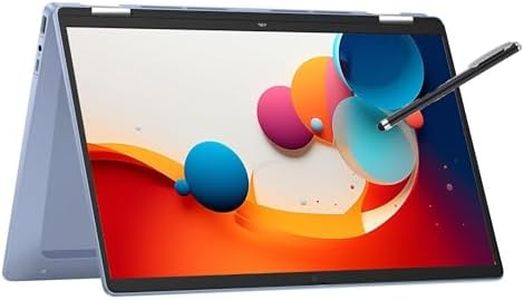
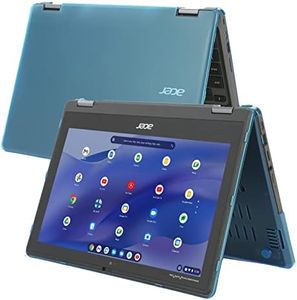
Build and Hinge DesignFor 2-in-1 Chromebooks, the hinge allows the screen to fold all the way back or detach, turning your device into a tablet. Flexible and sturdy hinges make switching between laptop, tent, stand, and tablet modes easier and more durable over time. If you use touchscreen and tablet mode often (drawing, reading, presenting), prioritize a smooth, reliable hinge mechanism. If you mostly type, hinge design may be less critical.
Input Methods (Touch and Stylus Support)Some 2-in-1 Chromebooks support styluses and advanced touch input, which is great for note-taking, drawing, or interacting with creative apps. If you want to use these features, make sure the Chromebook is compatible with the stylus you like, and that it offers accuracy and palm rejection. If you only plan to tap and swipe or type, standard touchscreen support is sufficient.
Port SelectionPorts are where you plug in devices, like USB drives, headphones, or chargers. Chromebooks often have a few ports—USB-C for charging or displays, possibly a microSD slot for extra storage, and headphone jacks. List your accessories and how you connect to screens or storage to ensure the Chromebook has what you need. If you use lots of devices, make sure you have enough ports or plan on using adapters.
Weight and PortabilityWeight affects how easy the Chromebook is to carry in tablet mode or in your bag. Lighter models are more comfortable for handheld use and working on the move, while heavier ones may feel sturdy but be less pleasant to hold for long. Consider how much you move around during your day, if you travel, or if you’ll often use the device while standing up.