10 Best 32 Inch Gaming Monitors
From leading brands and best sellers available on the web.By clicking on a link to a third party's website, log data is shared with that third party.
Related Products
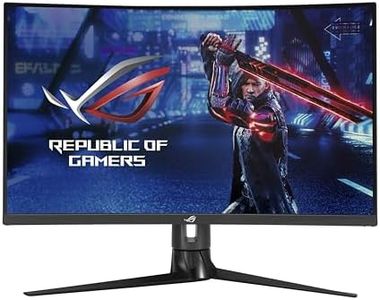
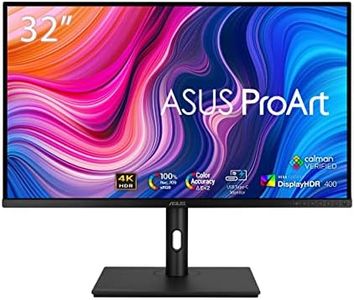
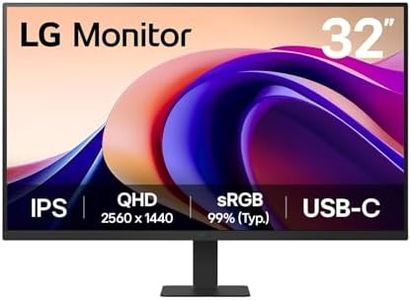
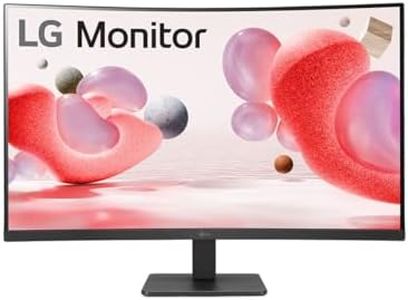
Buying Guide for the Best 32 Inch Gaming Monitors
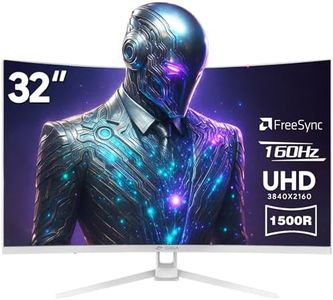
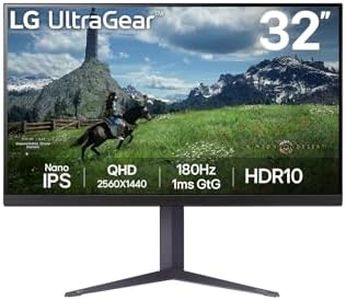
Choosing a 32-inch gaming monitor is an exciting step toward enjoying a more immersive and visually impressive gaming experience. With a bigger screen, you get more space for details and a heightened sense of presence in your games. However, not all monitors are created equal, and various specifications can have a huge impact on the quality and comfort of your gaming sessions. Knowing what each key spec means and how it relates to your personal gaming style or PC setup will help you make the smartest choice for your needs.ResolutionResolution refers to the number of pixels displayed onscreen, which determines how sharp and clear the images look. For a 32-inch monitor, common options are Full HD (1920x1080), Quad HD or 2K (2560x1440), and 4K (3840x2160). Full HD can look a bit stretched at this size, so it’s better for casual gamers or those with lower-end PCs. 2K is a sweet spot for most, offering a crisp appearance and manageable performance demand. 4K gives incredibly lifelike images but requires powerful hardware to run smoothly—ideal if you want the sharpest visuals and have a high-end gaming setup. Pick the resolution that matches your computer’s capability and how much visual detail matters to you.
Refresh RateThe refresh rate, measured in hertz (Hz), is how many times per second the monitor updates with new images. Higher numbers mean smoother motion, which is especially important in fast-paced games. Standard monitors are 60Hz, but 120Hz, 144Hz, or even higher are now common for gaming. For competitive or action-heavy gaming, look for at least 144Hz. If you mostly play slower-paced or story-driven games, you may be happy with lower refresh rates.
Response TimeResponse time measures how quickly a monitor’s pixels can change color, typically given in milliseconds (ms). Lower numbers mean less blurring during fast motion. For gaming, 1ms to 5ms is excellent and helps reduce ghosting (trails behind moving objects), which is especially noticeable in shooters and racing games. If you’re not as sensitive to motion blur or mostly play slower games, slightly higher response times may still be perfectly fine.
Panel TypePanel type affects color quality, contrast, and how the screen looks from different angles. The main types are TN (Twisted Nematic), IPS (In-Plane Switching), and VA (Vertical Alignment). TN panels usually offer the fastest response times but have poorer colors and viewing angles. IPS panels give beautiful colors and wide viewing angles, great for immersive gaming and versatility, though they might have slightly slower response times. VA panels have deep contrast and good colors, typically sitting between TN and IPS for response speed. Choose based on whether color quality or speed is more important for your games.
Adaptive Sync (G-Sync/FreeSync)Adaptive sync technology like G-Sync (for NVIDIA) and FreeSync (for AMD) helps prevent screen tearing, which happens when your graphics card and monitor aren’t perfectly in sync. This tech adjusts the monitor’s refresh rate to match the output from your graphics card, giving smoother gameplay. If you notice stutter or tearing in games, pick a monitor that supports the adaptive sync technology matching your graphics card. It can greatly improve the overall experience.
CurvatureCurved monitors have a gentle bend that can make gaming more immersive by matching the natural curve of your field of vision. Curvature is often listed as 1500R, 1800R, etc.—the smaller the number, the stronger the curve. A curved display can help in large screen sizes like 32 inches, making edges easier to see and reducing distortion. Go for a curved monitor if you prefer a more wrapped-around, cinematic feel, but remember it’s a personal preference—some gamers still enjoy flat screens.
ConnectivityConnectivity refers to the ports available for hooking up your devices. Common options include HDMI, DisplayPort, and sometimes USB-C. Make sure your chosen monitor has the ports to match your PC, console, or other devices. Also, consider the version of HDMI or DisplayPort, as newer versions may support higher resolutions and refresh rates. If you plan to connect multiple devices, look for extra ports or special features like built-in USB hubs.