10 Best 49 Inch Curved Monitors
From leading brands and best sellers available on the web.By clicking on a link to a third party's website, log data is shared with that third party.
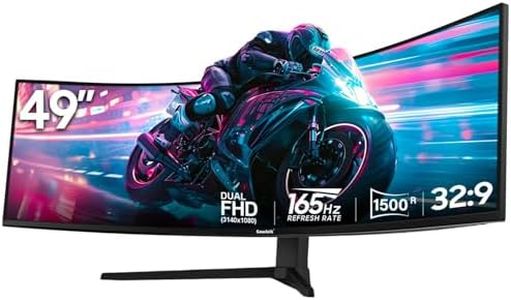

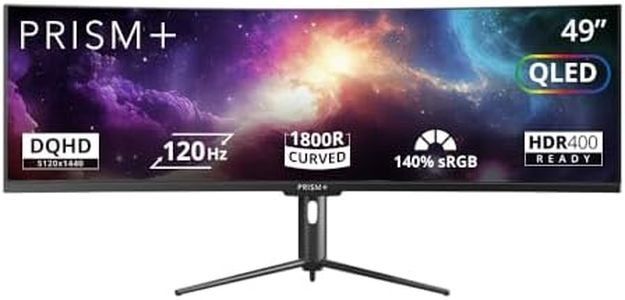
Related Products
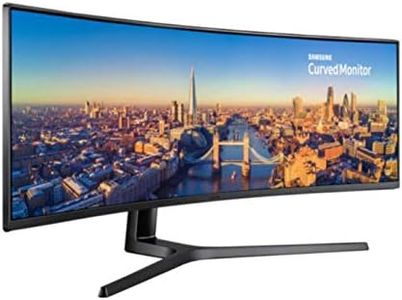
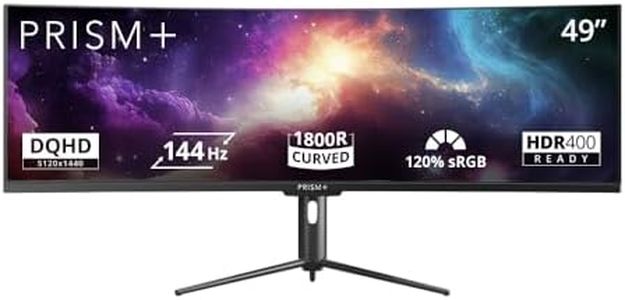
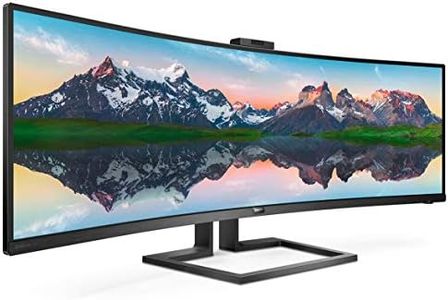

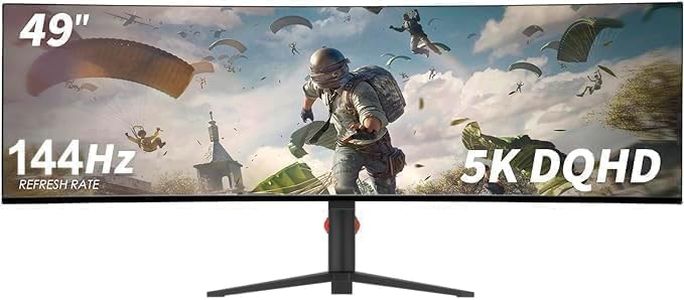
Buying Guide for the Best 49 Inch Curved Monitors
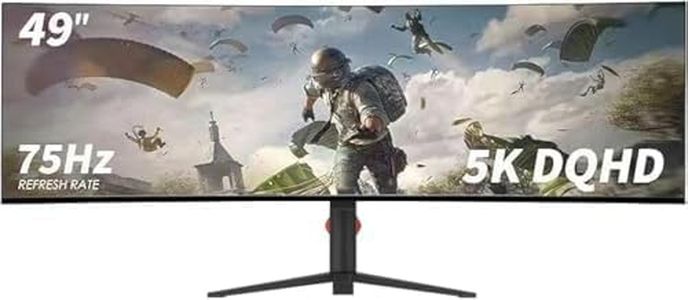
Choosing a 49-inch curved monitor is an exciting process, mainly because these massive displays can transform your workspace or gaming setup. The ultra-wide format provides a vast amount of screen space, which can be extremely beneficial for multitasking, immersive gaming, or creative work. However, to make the most of a monitor this size, it's essential to understand the main features and how they relate to your needs so you walk away with a monitor that's functional and enjoyable to use.ResolutionResolution refers to the number of pixels displayed on the screen. Higher resolutions mean sharper images and smoother text. Most 49-inch curved monitors offer resolutions like 3840x1080 (double Full HD) or 5120x1440 (super ultra-wide Quad HD). Lower resolutions on such a large screen can make images look less sharp, especially if you sit close. For multitasking or creative work, aim for a higher resolution (such as 5120x1440) since this gives you more screen real estate and crisper visuals. For gaming, a lower resolution can be easier on your graphics card but may sacrifice sharpness. Consider how you’ll use your monitor most—productivity, gaming, or media—and choose a resolution that balances visual clarity with your computer’s capabilities.
Curvature (Curve Radius)The curvature of a monitor is measured in 'R,' such as 1800R or 1000R, representing the radius of the arc if you made a full circle out of the curve. The smaller the number, the more pronounced the curve. A more aggressive curve (low R number, like 1000R) offers a more immersive experience and better viewing angles along the edges, which is great for gaming or if you sit close and want to feel surrounded by the display. A gentler curve (higher R number, like 1800R) is less enveloping and can be better for general productivity, especially if you’re frequently sharing your screen with others. Think about your seating distance and whether you want immersion or a more subtle effect when picking the curve.
Refresh RateRefresh rate refers to how many times the screen updates per second, measured in Hertz (Hz). Standard monitors refresh at 60Hz, but gaming and high-performance models can reach 120Hz or even 240Hz. A higher refresh rate makes motion appear smoother and can reduce eye strain, especially during fast-paced activities like gaming or scrolling. If you’re a competitive gamer, look for 120Hz or higher. For standard office work or media consumption, 60Hz is usually sufficient. Choose based on whether fluid motion and responsiveness are a priority for your main uses.
Panel TypePanel type affects color, contrast, and viewing angles. The three main types are IPS (In-Plane Switching), VA (Vertical Alignment), and TN (Twisted Nematic). IPS panels have excellent color accuracy and wide viewing angles, making them ideal for creative professionals and those valuing image quality. VA panels offer higher contrast and deeper blacks, which is great for watching movies or gaming in dark rooms, though sometimes with slightly slower response times. TN panels are typically fastest but have weaker colors and narrower viewing angles, and are less common in large curved monitors. Think about what matters more: color quality (choose IPS), high contrast (choose VA), or response speed (look for TN or fast VA).
Connectivity PortsConnectivity refers to the types and numbers of input and output ports on the monitor, like HDMI, DisplayPort, USB-C, or USB hubs. Multiple and varied ports allow you to easily connect different devices, such as PCs, laptops, gaming consoles, and peripherals. If you plan to use the monitor with several devices, look for one with multiple inputs. USB-C with charging can simplify cable management for modern laptops. Assess the ports you need based on your existing and future devices to ensure seamless connectivity.
Ergonomics and AdjustabilityErgonomics involve how much you can physically adjust the monitor for comfortable viewing—height, tilt, and sometimes swivel adjustments. A 49-inch monitor is big and heavy, so being able to position it at the correct height and angle is essential for avoiding neck or eye strain over long periods. If you plan long working, gaming, or editing sessions, opt for a monitor with good ergonomic adjustability, or ensure it’s compatible with desk mounts.
Screen Split and Picture-in-Picture FeaturesThese built-in features allow you to divide your display into multiple virtual screens—or even display input from two computers at once—making multitasking easier. If you want to use your monitor as a giant workspace or connect two devices side by side, look for models that offer robust screen split or picture-in-picture modes. Choose this based on whether you plan to multitask extensively or prefer the flexibility of working across different sources and windows.