10 Best Photo Printer With Scanners
From leading brands and best sellers available on the web.By clicking on a link to a third party's website, log data is shared with that third party.
Related Products
Up to 29% off

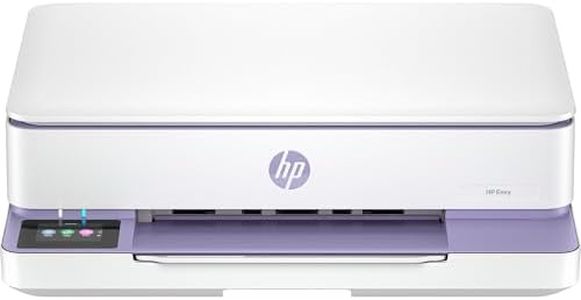
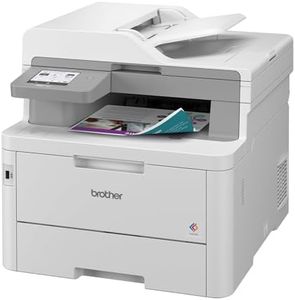
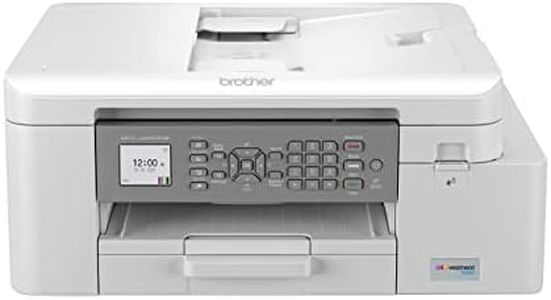
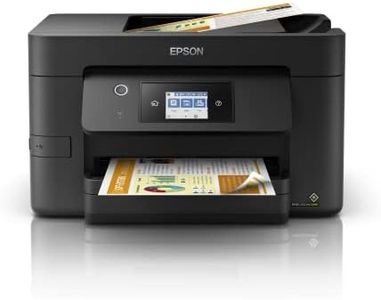
Recommended lists

Buying Guide for the Best Photo Printer With Scanners
Choosing a photo printer with a scanner can feel overwhelming due to the many features and options available. The best approach is to think about what you want to accomplish: are you mostly printing family photos, scanning boxes of old photographs, or occasionally copying documents? Knowing your main tasks will help you focus on the features that really matter, ensuring you end up with a printer-scanner combo that fits your needs and workflow.Print Resolution (DPI)Print resolution, measured in dots per inch (DPI), determines how sharp and detailed your printed photos look. Higher DPI means more detail and smoother images, which is especially important if you want to print high-quality photos to display or share. For basic photo prints, a DPI around 1200x1200 is usually enough, while enthusiasts or those wanting to print enlargements may prefer 4800x1200 DPI or higher. If you mostly print photos to keep in albums or share online, standard resolutions will suffice; only lean toward higher DPI if you’re focused on gallery-quality output.
Scanner Resolution (Optical DPI)Scanner resolution, also measured in optical DPI, affects how much detail the device can capture when scanning photos or documents. A higher value allows for more accurate reproduction of originals, which is useful for archiving photographs or enlarging prints. For everyday needs, 600x1200 DPI is fine for documents and average photo scans; photographers or those digitizing old photos for restoration work will benefit from scanners with 1200x2400 DPI or more. If you scan mostly text or casual pictures, you won’t need extremely high resolutions.
Ink System (Cartridges/Types)Photo printers use different types of ink systems: some have combined color cartridges, while others use separate cartridges for each color, sometimes including extra colors for better accuracy. More ink colors typically mean better color reproduction, important for people serious about photo quality. Three-color and four-color systems are standard for casual use, but six-color (or higher) systems are ideal for those seeking vibrant, true-to-life photographic prints. If color accuracy matters a lot because you print and frame photos, choose a printer with more individual cartridges. If you print occasionally, simpler systems may be easier to manage.
Media Support (Paper Sizes and Types)This refers to the different paper sizes (like 4x6, 5x7, letter, A4) and types (glossy, matte, specialty photo paper) the device can handle. If you want to print on a variety of photo paper or make borderless prints in different sizes, check the printer’s media support. Basic models might only support standard sizes, while more advanced ones can print larger or specialty media. Choose based on the usual print sizes you anticipate: regular photo snapshots need basic support, but crafts or larger prints require more flexibility.
Connectivity OptionsModern photo printers offer several ways to connect: USB, Wi-Fi, Bluetooth, and sometimes direct SD card slots. Wireless options make it easier to print from mobile devices or laptops without finding cables, while an SD card slot can be handy for printing directly from a camera’s memory card. If you plan to print from your phone or multiple devices, prioritize wireless connectivity. For single-computer use in a fixed spot, USB might be enough.
Print SpeedPrint speed tells you how quickly the printer produces photos or scanned documents, usually in pages per minute (ppm) or images per minute (ipm). For photos, speed is often slower than standard documents. If you’ll be printing large batches or using the printer in a shared space, faster models are more convenient. For occasional or patient users, a slower speed won’t be a big drawback.
Duplex (Two-Sided) Printing & ScanningSome printers can automatically print or scan both sides of a sheet, called duplexing. This is useful if you want to make two-sided photo albums or scan/copy both sides of a document in one go. It saves time and paper. If you rarely scan double-sided pages or don’t need to print on both sides, you can skip this feature.