10 Best Photo And Document Scanner
From leading brands and best sellers available on the web.By clicking on a link to a third party's website, log data is shared with that third party.
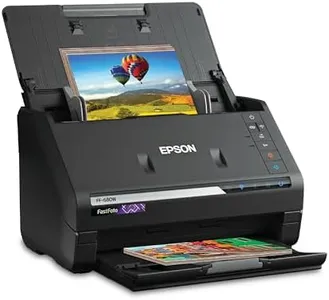
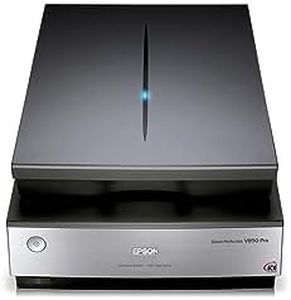
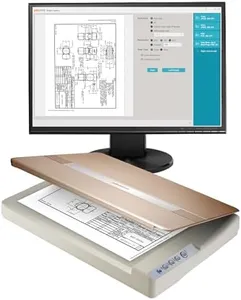
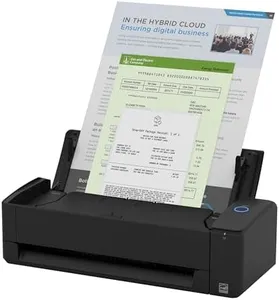
Related Products
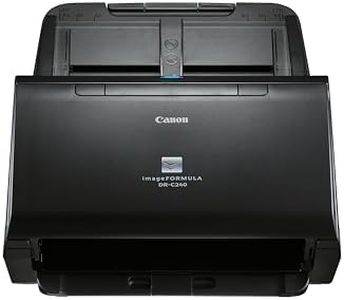
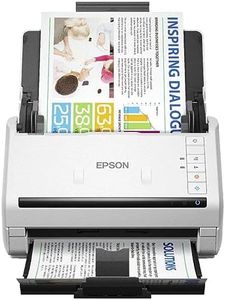
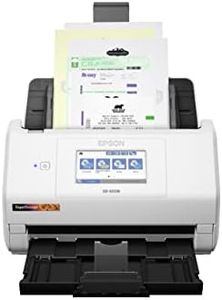
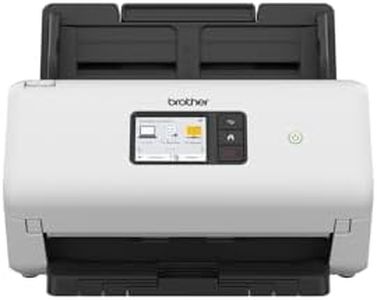

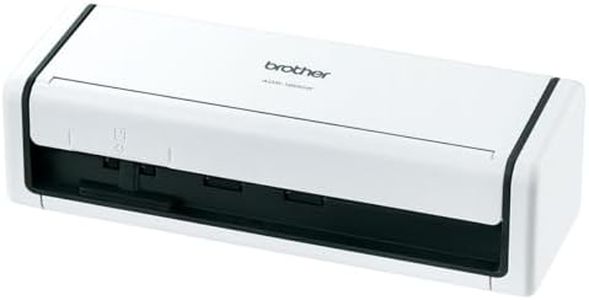
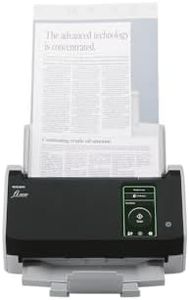


Buying Guide for the Best Photo And Document Scanner
Choosing the right photo and document scanner is all about matching your scanning habits with the right features. Think about what you’ll scan most often: is it old family photos, stacks of receipts, important documents, or a bit of everything? Scanners come in different shapes, sizes, and levels of sophistication. By understanding the key features, you’ll be able to get a scanner that makes your scanning tasks quick, easy, and delivers the results you need.Resolution (DPI)DPI stands for dots per inch, and it tells you how much detail your scanner can capture. A higher DPI means more detailed and sharper scans, which is especially important for photos or images you might want to enlarge or edit. For basic document scanning, 200-300 DPI is usually enough since text doesn’t need extreme detail. For photo scanning, look for 600 DPI or higher to make sure colors and fine details are preserved. If you plan to archive or professionally showcase photos, a scanner capable of 1200 DPI or more may be a good choice. Match the DPI to how much detail you want to keep, and what you plan to do with your scans.
Scan SpeedScan speed tells you how long the scanner takes to process a page, usually measured in pages per minute (ppm) or images per minute (ipm for double-sided). This matters most if you’ll scan a lot of pages in one go, like for offices or archiving. Fast scanners (20+ ppm) are great for big document piles, while slower speeds around 5-10 ppm work fine for occasional home use or photo scanning where you want to spend more time on each image. Think about your workflow—if you don’t mind waiting, speed isn’t as important, but if you want to finish quickly, pick a faster model.
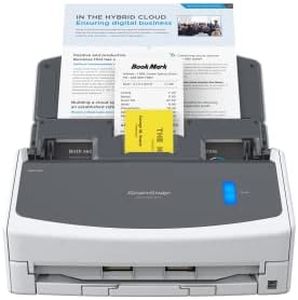
Automatic Document Feeder (ADF)An Automatic Document Feeder (ADF) lets you load multiple pages at once for the scanner to process automatically, instead of placing each sheet by hand. If you often scan multi-page documents, an ADF can be a huge time-saver. Feeders can handle different page counts, from small batches (about 20-30 sheets) to larger stacks (50+ sheets). If you mostly scan single pages or photos, an ADF isn’t as important. But for multi-page jobs, it’s almost essential.
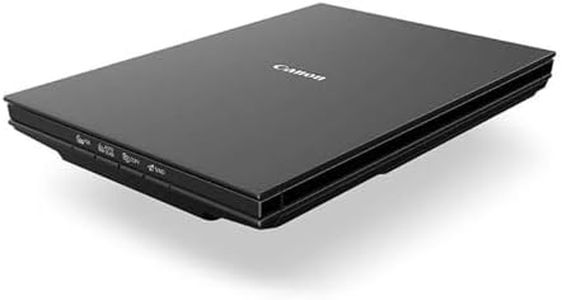
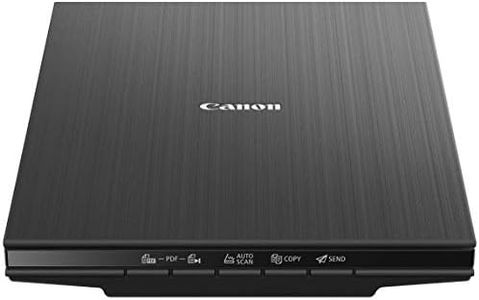
Flatbed vs. Sheet-fed DesignScanners come as flatbeds or sheet-fed types. Flatbed scanners let you scan thick items like books, passports, or delicate photos, since you lay things on a glass surface. Sheet-fed scanners pull in pages like a copier and are suited for handling multiple sheets quickly, usually just for loose paper. If you need flexibility for photos, delicate originals, or odd-sized items, pick a flatbed or a combination unit. For pure speed with piles of standard documents, go with sheet-fed.
ConnectivityConnectivity means how your scanner connects to your computer or devices. Common options include USB cables (direct and reliable), Wi-Fi (wireless from anywhere in the house), and sometimes network (Ethernet) or scanning directly to the cloud. USB is simple and foolproof for personal use. Wireless or cloud features are handy if several people need to scan, or if you want to use mobile devices, but they may require a bit more setup. Consider who will use the scanner and where, and match the connection options to your preferences.
Duplex ScanningDuplex scanning allows the scanner to scan both sides of a page automatically in a single pass. This feature is useful if you work with double-sided documents, such as contracts, bills, or handouts, and want to save time by not flipping pages manually. If most of your work is single-sided, you can skip duplex. If you handle double-sided paperwork regularly, this feature can really increase convenience and efficiency.
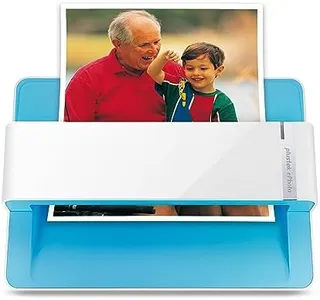
Supported Media Types and SizesDifferent scanners handle different paper sizes and types, ranging from small receipts and photos to legal-size documents, ID cards, or even negatives and slides. If you only need to scan standard letter or A4 paper, most scanners will work. For photos, look for models with good photo support and gentle handling. If you want extra versatility for larger documents, irregular items, or film, check the scanner’s supported media and attachments. Think about the variety of items you might scan, and choose a model that can handle them all.
Image Enhancement and Software FeaturesMany scanners include software for tasks like automatic cropping, color correction, dust removal, or converting scans to searchable text (OCR). These features can save you time and improve scan quality, especially for archiving photos or digitizing paperwork. If you want the scans to look great without manual tweaking or need to search through scanned documents, make sure the bundled software is robust and user-friendly. Decide which features matter most for your workflow and check the software before you buy.